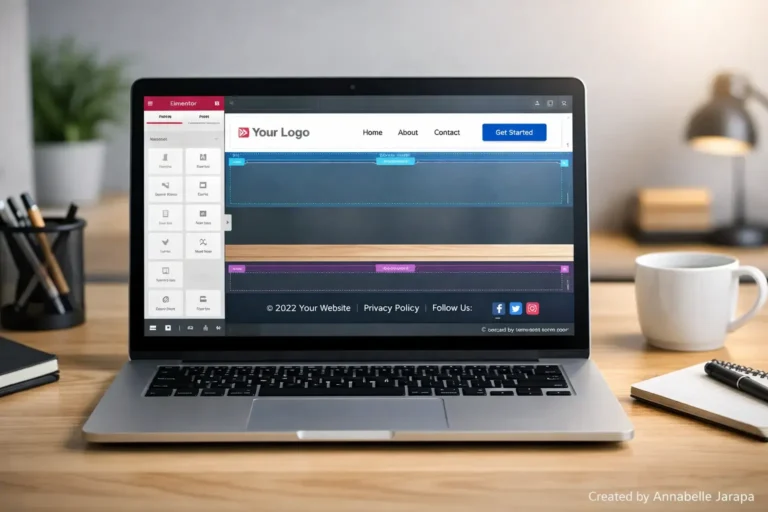
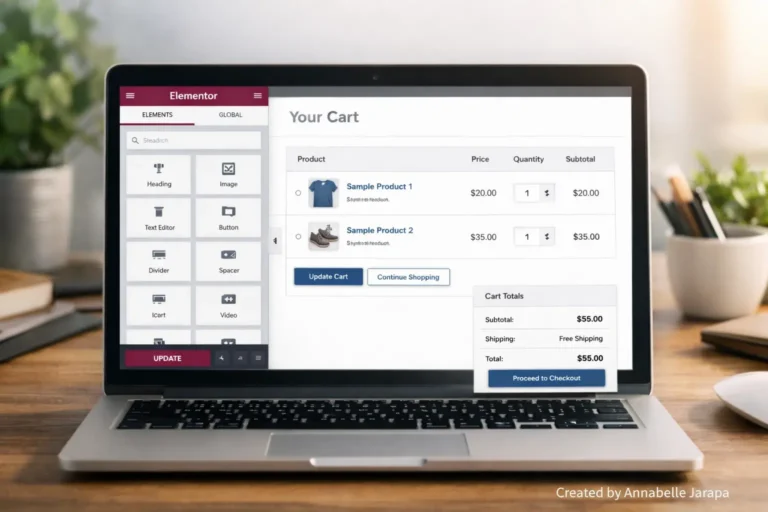
Pages can get messy quickly if your WordPress site has a lot of categories or services. People who visit your site might miss important information or leave angry. Custom Elementor tabs help you keep your pages organized, easy to navigate, and nice to look at, all without overwhelming your visitors.
Watch the full tutorial below
What You’ll Learn
- How to make tabs in Elementor that are clean and clickable
- Putting your content in order so that visitors can find what they need quickly
- Styling tabs to fit the style and feel of your website
- Making tabs work on mobile devices so that nothing breaks on small screens
- Things that beginners often do wrong (and how to avoid them)
How to Make Elementor Tabs
Elementor tabs are a great way to break up content into small pieces. Here is a useful way to use them:
Step 1: Add the Tabs Widget
To your page, drag the Tabs widget from Elementor’s panel. You will start with two default tabs, but you can easily add or remove more as needed.
Step 2: Pick the services or categories you want
There should be one category or service for each tab. Keep the titles clear; short and descriptive titles help users know exactly what they’ll find.
Step 3: Give Your Tabs a Style
Design is important. Don’t make it too complicated:
- Use colors that draw attention to the active tab without being too loud.
- Make sure the fonts are easy to read on both desktop and mobile devices.
- Add small hover effects to make it look more polished.
Step 4: Look at the mobile view
A lot of people who are new to this forget this step. Check to see if your tabs stack or fit right on smaller screens. This is possible with Elementor’s responsive settings.
Step 5: Test Everything
Look at your page before you publish it. To make sure that the content loads correctly, click on each tab. Broken tabs are the most annoying thing for visitors.
Tips and Common Mistakes
- Don’t overload tabs: Keep content short and scannable. A few bullet points are better than a giant paragraph.
- “Tab 1” or “Services” are not clear enough. Specific titles are good for both visitors and SEO.
Related Articles
- Customize Your WooCommerce Cart Page With Elementor Free
- WordPress Live Chat Integration—Boost Engagement Fast!
- Top WordPress Settings for Every Beginners
- FREE Elementor Templates: Build E-Commerce, Blogs & More
Here is the full tutorial again: Custom Elementor Tabs for WooCommerce Category & Service Tabs
Final Thoughts
Custom Elementor tabs can make your site look more professional and make it easier to get around. They are easy to set up, but they make a big difference in how users feel about the site.
For more tutorials, sign up for Preet Tech Ideas (in English) and Preet WebXP (in Hindi). If you need help with WordPress, go to Preet Web Vision for full guides or contact us at inquiry@preetwebvision.com or +63-9633112000.