Most people who build a WooCommerce store spend time designing product pages and making the checkout process better, but they often forget about the cart page. This is a very bad mistake. Visitors slow down on the cart page to look over their order and decide whether to go through with the purchase or not.
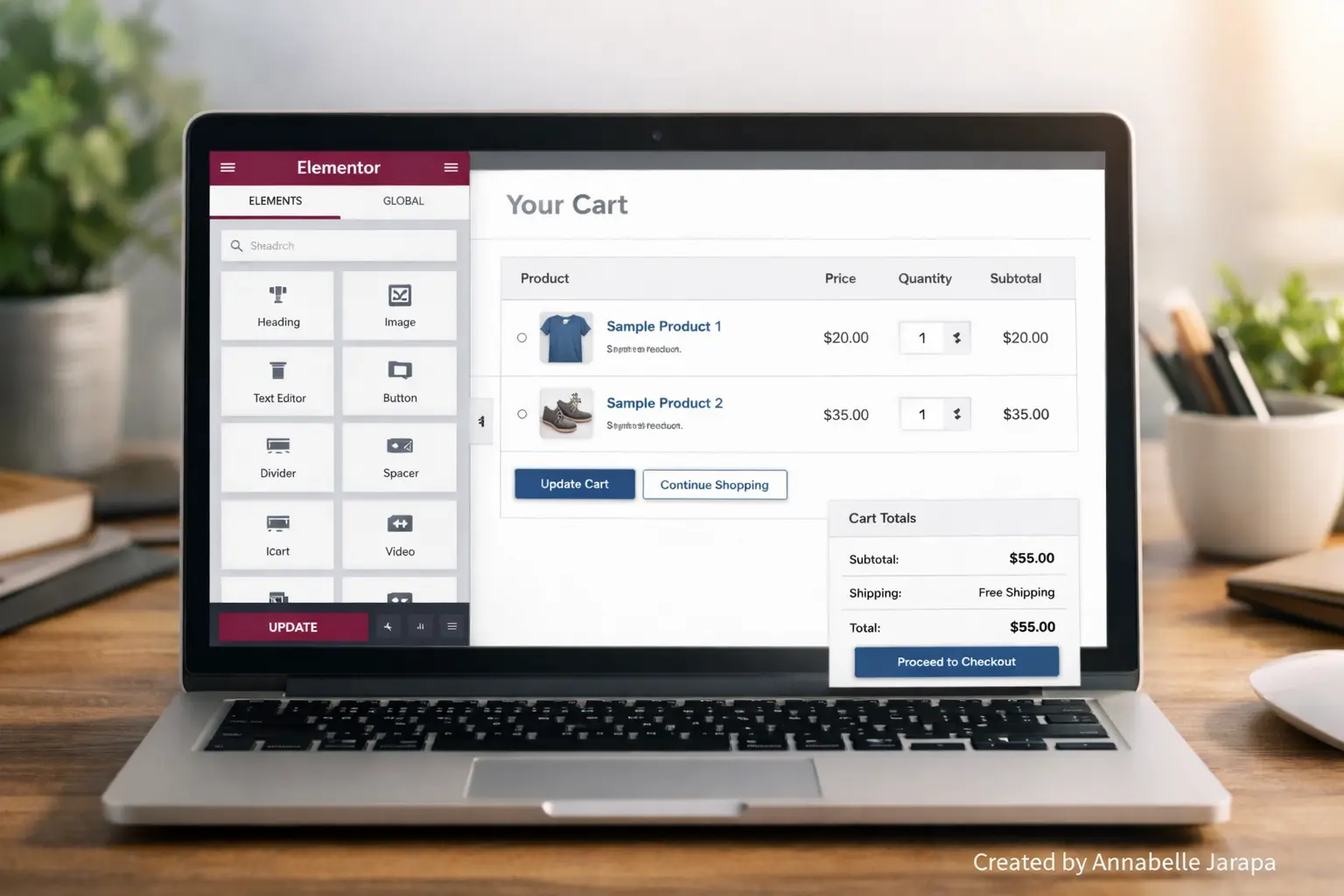
WooCommerce comes with a very simple cart layout by default. It works, but you can’t see much of what you’re doing. You can still make the cart page better with Elementor Free, which is great news because you don’t need to use premium plugins or custom code.
This article on Preettechideas.com will give you a clear picture of how to customize your WooCommerce cart with Elementor Free, what kinds of changes are possible, and why following a visual guide is the best way to make these changes. Here is the full tutorial:
Customize Your WooCommerce Cart Page With Elementor Free
Why the Cart Page is Important for WooCommerce Conversions
The cart page is where you go from looking to buying. At this point, users are already interested; they just need to be sure and clear.
Customers usually do the following on the cart page:
- Review selected products and quantities
- Remove or update items
- Decide whether to continue to checkout
If the page looks messy, has bad spacing, or is out of date, it causes friction. Even small problems with usability can make people leave their carts.
Making the cart page layout better helps people feel more sure about moving forward. You can improve the structure, spacing, and readability of your site with Elementor Free without losing any of WooCommerce’s features.
What the Full Video Tutorial Will Show You
The YouTube tutorial is about customizing the cart page in a practical way, not in a theoretical way. You will learn how the default WooCommerce cart page works and how to use Elementor Free to make it look better without breaking anything.
Rather than forcing advanced customizations, the tutorial demonstrates realistic layout adjustments…..changes that actually work within WooCommerce’s structure. You will observe how spacing, section organization, and visual balance can make the cart page feel cleaner and more professional.
The video also shows how these changes work on screens of different sizes, making sure that the cart page is still usable on mobile devices.
It’s much easier to follow and use when everything is shown live on a real WordPress site than when it’s just written down.
📺 You can see the whole tutorial at https://www.youtube.com/watch?v=aX5J7geE19o.
Why a Visual Walkthrough Is Better for This
Cart pages in WooCommerce are always changing. Reading about changes to the layout can be confusing, especially for people who are new to it.
Watching the process helps you:
- Understand where each change is applied
- Avoid layout conflicts with WooCommerce
- See how Elementor Free fits into the cart structure
- Apply changes confidently without trial and error
You can stop the video, try out changes on your own site, and go at your own pace, which is something that written guides can’t easily do.
What You Should Have Ready Before Watching
Make sure you have the following set up before you start the tutorial
- A WordPress website.
- WooCommerce installed and activated.
- Elementor (Free version) installed.
- At least one product added.
- A cart page assigned in WooCommerce settings.
There is no need for Elementor Pro, extra paid plugins, or coding experience.
Why Customizing the Cart Page With Elementor Free Is Worth It
There are both visual and functional benefits to making the cart page better.
Better Usability
A clearer layout makes it easier for customers to review their order and continue to checkout.
Better flow for conversions
Lowering friction at the cart stage helps keep people from leaving
Consistent Branding
The design of the cart page can better match the rest of your site.
Budget-Friendly Solution
All of the changes shown in the tutorial use Elementor Free.
More Control Over Design
You don’t have to use WooCommerce’s default layout anymore.
This tutorial is most helpful for
This tutorial is a good fit for you if:
- Are new to WooCommerce
- Use Elementor Free and want realistic customization options
- Run a small or medium online store
- Prefer simple, maintainable solutions
The approach fits well with Preettechideas.com’s goal of giving useful WordPress advice.
Find out more on YouTube
To get more WordPress, Elementor, and WooCommerce tutorials that show you how to do things step by step, subscribe to our channels.
- Preet Tech Ideas (English)
- Preet WebXP (Hindi)
Both channels focus on building websites in the real world and giving clear explanations.
Need Help with WooCommerce from a Pro?
You can get in touch here if you need help with your WooCommerce store or Elementor design:
🌐 Website: Preet Web Vision
📞 Phone: +63-9633112000
📧 Email: inquiry@preetwebvision.com
This is perfect if you want someone else to do custom work for you or if you don’t have time to make the changes yourself.
Before you make any changes, watch the whole tutorial.
👉 Click here to watch the whole tutorial: How to Edit WooCommerce Cart Page With Elementor Free
Related Articles that might help you
- Best Free WordPress E-Commerce Themes for 2025
- WooCommerce Order Tracking Tutorial 2025
- Sustainable eCommerce: SEO & Eco-Friendly Digital Funnels
- Dominate E-Commerce with Voice Search Optimization – The Future is Here!
Tell Us What You Think
Please leave a comment below if you have any questions or have tried to customize your WooCommerce cart page. Your comments help make future tutorials better and help other readers too.