Don’t Panic — This WordPress Error Is Fixable
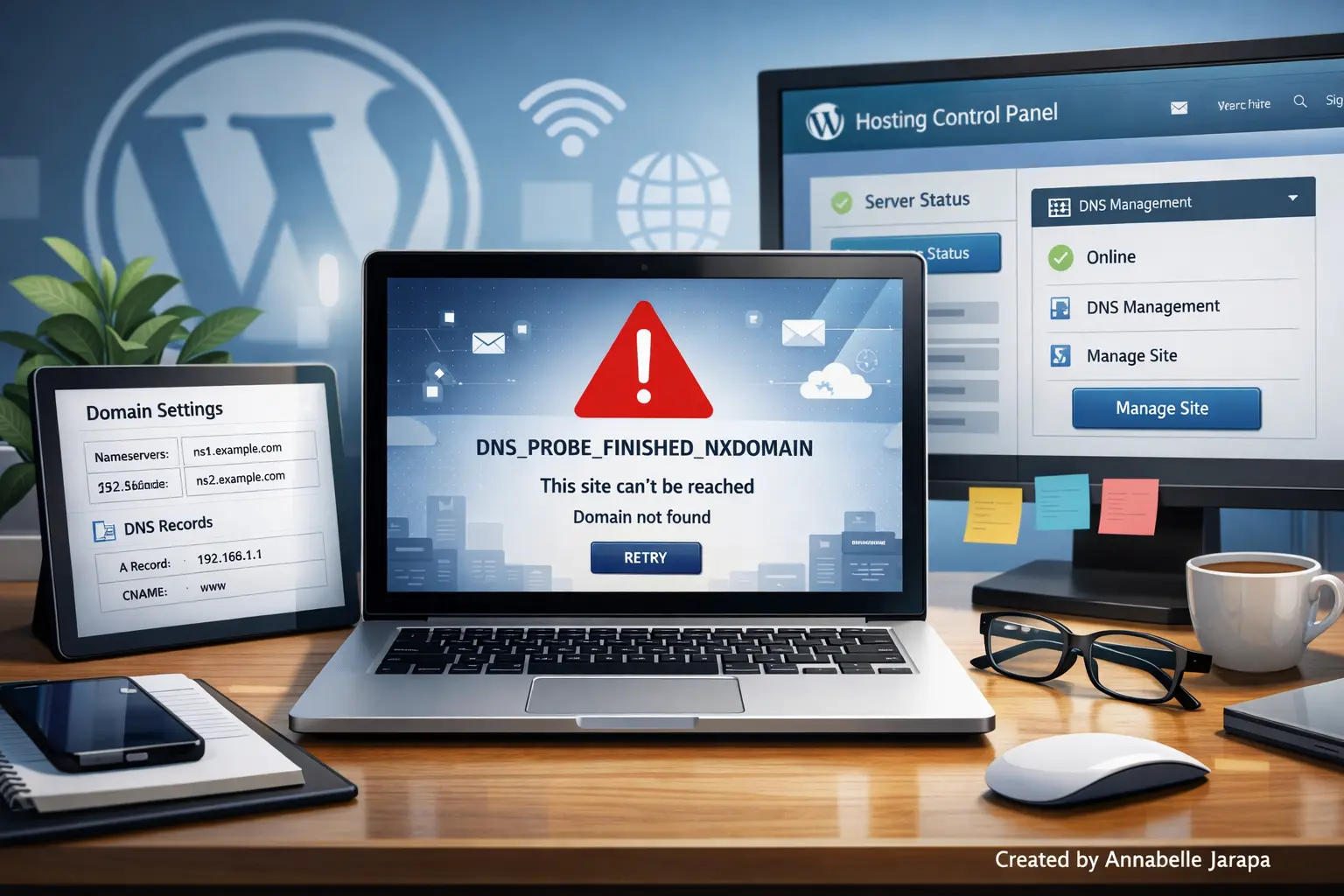
When you try to open your WordPress website and see the DNS_PROBE_FINISHED_NXDOMAIN error, it can be stressful, especially if your site was working fine before. One minute, everything loads fine, and the next, your browser says the domain doesn’t exist.
The good news?
This is a common DNS problem, and in most cases, you don’t need to change any complicated code to fix it.
I strongly suggest that you watch this full video tutorial first if you want to follow along with a clear, real-time walkthrough:
How to fix DNS PROBE FINISHED NXDOMAIN error on WordPress website
The video shows each fix step by step, which makes it much easier to understand, especially if you’re new to WordPress or DNS settings.
This article will help you:
- Know what the mistake means
- Find out why it happens on WordPress sites.
- Find out what options are available (just a brief overview)
- Get ready before you watch the whole tutorial.
What does DNS_PROBE_FINISHED_NXDOMAIN mean?
This error means, in simple terms:
Your browser cannot find your website’s domain name through DNS.
The Domain Name System (DNS) is like a phone book for the internet. If DNS can’t find your domain, your browser will show the NXDOMAIN error instead of your website.
This problem can happen:
- On WordPress sites that have just been launched
- After changing the settings for your domain or hosting
- Because of a problem with DNS configuration
- Because of problems with the browser or local network
The most important thing to know is that the website is still there; you just can’t get to it right now.
What Causes This Error on WordPress Sites
Sometimes, WordPress itself isn’t the problem. Most likely, the problem is with your domain, hosting server, DNS records, or computer.
Here’s a quick look at the most common reasons:
1. Incorrect DNS Records
Your domain won’t point to your hosting server correctly if its nameservers or DNS records are wrong.
2. Recent Domain or Hosting Changes
Changes to DNS don’t take effect right away. If you just
- Bought a new domain
- Linked a domain to hosting
- Changed the nameservers
This error may happen while DNS is spreading.
3. Domain that has expired or been suspended
Browsers will show the NXDOMAIN error if a domain name expires or is temporarily suspended.
4. Problems with the DNS cache in your browser or system
The problem is sometimes local. Your computer may still be using old DNS information.
5. Internet or Router DNS Issues
This error can also happen if your public DNS, your ISP, or your router is not set up correctly.
The YouTube video clearly shows and explains each of these causes, which makes it much easier to fix problems than guessing.
What the Full Video Tutorial Will Teach You
How to fix DNS PROBE FINISHED NXDOMAIN error on WordPress website
In the tutorial, you will learn:
- How to tell if the problem is with DNS, hosting, or the browser
- How to correctly check the status of your domain
- How to check DNS records and nameservers
- How to safely clear the DNS cache
- How to check your website after making changes
You don’t need to know anything about technology ahead of time because everything is shown visually.
Why Watching the Video Makes It Easier
When you only use words to explain DNS errors, they can be hard to understand. It helps to watch the video because:
- You can see exactly where to click.
- You don’t make the same mistakes that beginners do.
- You know what the right settings look like.
- You can stop and start whenever you want.
The video gives you one clear troubleshooting flow instead of making you jump between different articles. This saves you time and frustration.
Things to Get Ready and Tools Before Watching
Make sure you have the following before you start the tutorial:
- Access to your account with your domain registrar
- The information you need to log in to your web hosting panel
- Your WordPress admin login (if you can get to it)
- A reliable internet connection
- 15 to 20 minutes of quiet time
You can use these fixes right away while watching the video if you have them ready.
Why it’s good to fix the NXDOMAIN error quickly
Fixing this error as soon as you can helps you:
- Give visitors back access to the website
- Stop losing trust and traffic
- Don’t let downtime cause SEO problems
- Make sure that emails sent to your domain still work.
- Make sure your WordPress site works well
Taking too long to fix DNS errors can hurt how well your site shows up in search engines, so it’s important to act quickly.
Sign up to get more WordPress and website fixes.
If you like this topic, be sure to subscribe to these YouTube channels for regular WordPress tutorials, fixes, and guides that are easy for beginners to follow:
- Preet Tech Ideas (in English)
- Preet WebXP (Hindi)
Both channels talk about real problems with websites and give simple explanations of how to fix them.
Need Help from a Professional? We have you covered.
If you don’t want to deal with DNS or other technical problems yourself, getting help from a professional can save you time and stress.
🌐 Website: Preet Web Vision
📞 Phone: +63-9633112000
📧 Email: inquiry@preetwebvision.com
There are experts who can help with DNS errors, setting up WordPress, performance, and security.
Watch the Full Step-by-Step Tutorial Now
This article makes things clear, but the best way to learn how to fix things is by seeing them.
👉 Here is the full tutorial: https://www.youtube.com/watch?v=8DuRyOxOP6w
You might find these related articles useful:
- WordPress Course for Beginners – TUTORIAL
- Boost Your Website Speed with Cloudflare DNS
- Your Connection to This Site Not Secure Chrome Warning on WordPress Site – FIXED
- Why Your WordPress Site Is Loading So Slow
Final Thoughts
DNS errors can seem scary at first, but they’re not that hard to fix once you know the basics. You can confidently restore your WordPress website with the right help and the full video tutorial.
If you have questions, comments, or need more information: Please leave a comment below. Your thoughts are helpful to others as well!