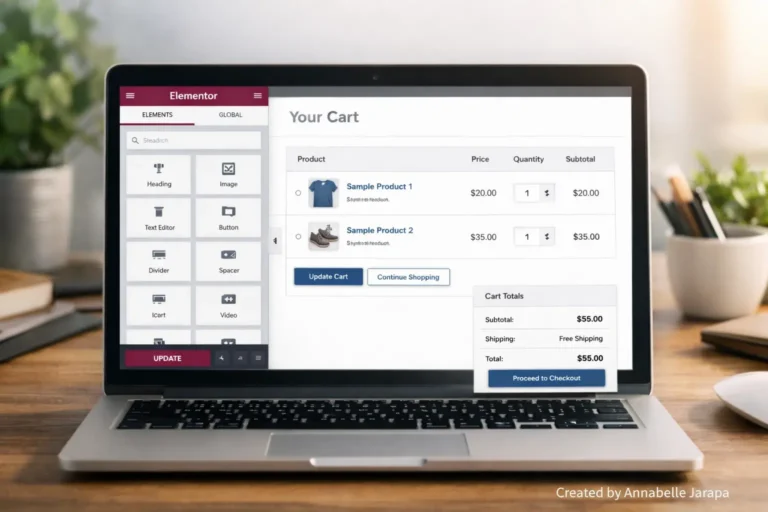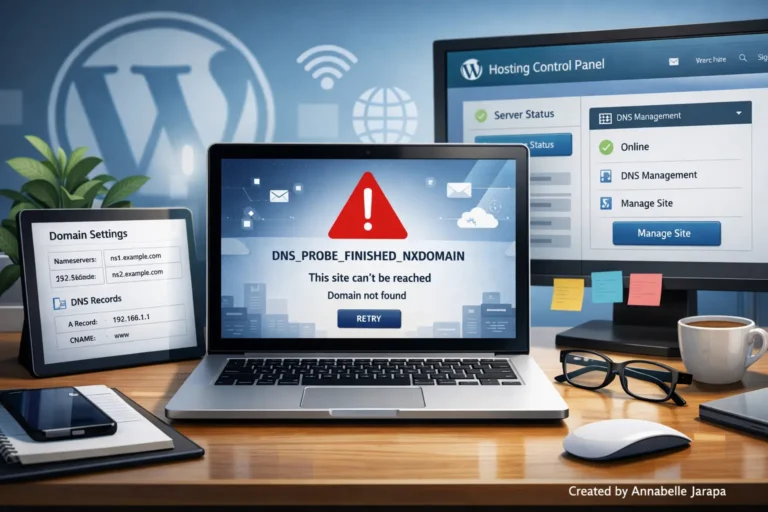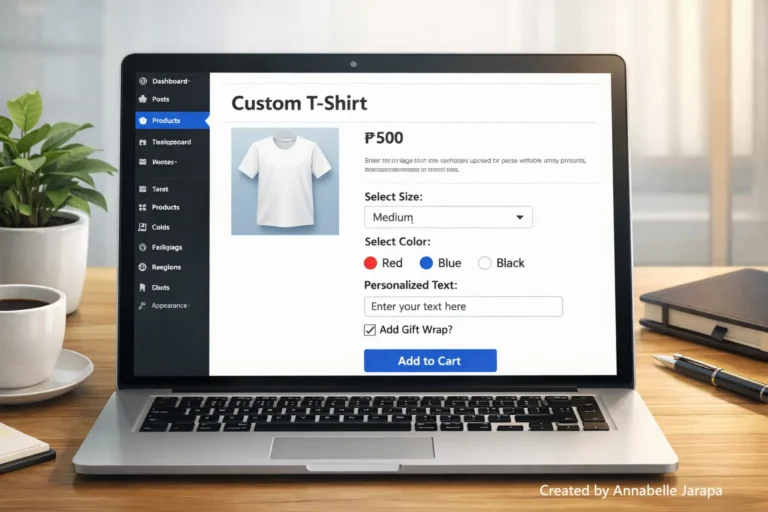
This guide is perfect for you if you’ve always wanted to make your own WordPress website but didn’t know how to get started. Don’t worry if you want to start a blog, a business website, a small online store, or even just learn WordPress because everyone else is talking about it. Just like I showed in the YouTube video, this step-by-step guide makes everything as easy as possible.
The first time you open the WordPress dashboard, it might seem like a lot to take in. But once you get the hang of the basics, everything makes sense. And in this guide, I’ll show you how to install, set up, customize, and do a lot more with your website. By the end, you’ll be sure that you can make your own fully functional website from scratch.
You can watch the whole video tutorial here to make learning even easier:
👉 Here’s the full video: Watch on YouTube
Full Course on WordPress for Beginners (Complete Guide for 2025)
In 2025, WordPress is still the best and most flexible way to build a website. It powers more than 43% of the internet. And the best part? You don’t have to know how to code. You can make a website if you can drag, drop, click, and change text.
The full walkthrough below is based on the YouTube video and is written in simple, friendly language so that even complete beginners can understand it.
Things You Should Have Before You Start
✔ A Domain
This is the address of your website’s home page (e.g. yoursite.com).
✔ Hosting
All of your website’s files are stored here. You can see how easy it is to connect your domain and hosting in the video.
✔ Installed WordPress
One-click installation is available from most hosting companies. No technical setup needed.
You can go into the WordPress dashboard now that you have these.
Getting to know the WordPress Dashboard
The dashboard may seem confusing at first, but it’s really easy once you break it down.
The main areas you’ll use a lot are:
1. Posts
For blog posts, articles, tutorials, and news.
2. Pages
For pages that don’t change, like Home, About, Services, and Contact.
3. Appearance → Themes
To change how your whole website looks.
4. Appearance → Customize
To change the logo, colors, fonts, layout, and more.
5. Add-ons
Add more features like security, backups, SEO, page builders, and more.
6. Plugins
Basic setup includes the site title, permalinks, time zone, and admin email.
The video tutorial shows each of these parts step by step so that beginners know exactly where everything is.
Picking and Installing a WordPress Theme
Themes determine how your website looks. This is how to put one in:
- Go to Themes in the Appearance menu.
- Click “Add New”
- Look for clean themes that are easy for beginners to use, like Astra, GeneratePress, Blocksy, and Kadence.
- Click “Install” and then “Activate.”
Once it’s turned on, you can change:
- Header layout
- Colors
- Typography
- Menus
- Footer
- Homepage layout
This is where your site starts to look like what you want it to. The video makes the whole process of customizing things easier so it doesn’t seem too hard.
Adding Important Pages to Your Site
A typical website has:
1. Home Page
Your main landing page. Think of this like the front door of your website.
2. About Page
Share who you are and why your website exists.
3. Services / Products Page
Explain what you offer, your pricing, or your packages.
4. Blog Page
Where your articles will appear.
5. Contact Page
Add a form, email, and your details, such as:
Phone: +63-9633112000
Email: hello@preetwebvision.com
These details are also your branding touchpoints, and you’ll see them come up naturally throughout the course.
To make a page:
- Go to Pages → Add New
- Enter a title
- Add your content with blocks
- Publish
Making Your First Blog Post
WordPress posts are great for:
- Blogging
- Guides
- Tutorials
- News updates
- Reviews
Steps to create a blog post:
Go to Posts → Add New
- Write your title
- Add content using the block editor
- Insert images, videos, headings, tables, etc.
- Add categories and tags
- Publish
You will learn exactly how to format posts in the YouTube tutorial so that they look clean, modern, and good for SEO.
How to Install Important WordPress Plugins
Plugins are like apps that you can add to your WordPress site. Some important ones that you will usually need are:
✔ SEO Plugin (Rank Math or Yoast)
Helps optimize your content for Google.
✔ Page Builder (Elementor, Gutenberg, or Spectra)
For drag-and-drop designing.
✔ Form Plugin (WPForms or Contact Form 7)
To create contact forms.
✔ Security Plugin (Wordfence or Solid Security)
To protect your site.
✔ Backup Plugin (UpdraftPlus)
To keep backups in case something breaks.
✔ Caching Plugin (WP Super Cache or LiteSpeed Cache)
It speeds up your site.
The video will show you clearly how to install, activate, and set up each plugin.
Making Your Website Look Professional by Customizing It
Customization is where you can be creative
You can do the following things in WordPress Customizer or Theme Builder
- Upload your logo
- Choose color palette
- Adjust fonts
- Set a header and footer
- Arrange homepage sections
- Add hero banners
- Insert call-to-action buttons
- Style buttons and text
Here are some tips from the course
✓ Keep colors consistent
Choose 2 to 3 brand colors.
✓ Use clean fonts
Modern sans-serif fonts look best in 2025.
✓ Add whitespace
Makes your site easier to read.
✓ Add a strong call-to-action
Something like: “Get Started Today” or “Contact Us”.
You can get professional help with your website design by contacting us at:
Website: Preet Web Vision
Phone: +63-9633112000
Email: hello@preetwebvision.com
Setting Up Menus
Menus make it easy for visitors to find their way around your site.
- To create a menu:
- Go to Appearance → Menus
- Create a new menu
- Add pages (Home, About, Blog, Contact)
- Assign it to “Primary Menu”
- Save
You can also add custom links or categories to menus.
Setting Up Important WordPress Settings
Some important changes you can make in Settings are:
General Settings
- Site title
- Tagline
- Timezone
- Admin email
Reading Settings
- Choose homepage display (static page or blog feed)
Permalink Settings
Choose Post Name for clean URL structure (SEO-friendly for 2025).
Tips for Beginners from the Tutorial
Here are some helpful tips based on what you learned in class:
✔ Don’t add too many plugins
It makes the site slower.
✔ Make sure everything is up to date
WordPress core, themes, and plugins.
✔ Make sure your passwords are strong
Even beginners need to think about security.
✔ Add Search Console and Google Analytics
Keep an eye on your traffic and performance.
✔ Always look at the preview before you publish
Check to see that everything looks clean on both mobile and desktop.
Need help from a pro?
We can help you make your WordPress website fully optimized, fast, clean, and beautiful.
You can always get in touch through:
- 🌐 Preet Web Vision
- 📞 +63-9633112000
- 📧 hello@preetwebvision.com
We also have great WordPress tutorials on our YouTube channels:
- Preet Tech Ideas
- Preet WebXP
More Articles You’ll Enjoy
If you enjoyed this full WordPress course, you’ll definitely appreciate some of the other helpful guides on my blog. They’re written in the same simple, beginner-friendly way and will help you grow your WordPress skills much faster.
- How to Build a News Website in WordPress (Step-by-Step Tutorial 2025)
- Best Free WordPress E-Commerce Themes for 2025.
- WoodMart Theme -Launch Your Online Store TODAY
Feel free to explore them anytime—they’re all created to guide you just like this full course.
Leave your questions in the comments.
Don’t be afraid to ask if you’re still confused. Leave your questions, problems, or ideas in the comments. I enjoy making it easier for new users to learn WordPress.
Your story might even help other people who read it.
Here’s the video link again if you want to see the whole thing: WordPress Full Course For Beginners
I strongly suggest that you watch it all the way through. The video has detailed examples that make everything even easier.
Have fun building your website!